

Bouncie GPS Not Working? – Complete Troubleshooting Guide
Bouncie GPS Not Working? — Fix It Step by Step
By MototechGPS Team · Updated April · 9 min read
Bouncie GPS is one of the most reliable OBD trackers available — but like any electronic device, it can sometimes stop working correctly. Before you contact support or request a replacement, work through this troubleshooting guide. Most Bouncie issues are resolved in under 5 minutes with one of these fixes.
⚡ Quick Fix — Try This First (Solves 80% of Issues)
- Unplug Bouncie from the OBD port completely
- Wait 30 seconds
- Plug it back in firmly until it seats fully
- Start your car engine
- Drive for 5–10 minutes and check the app
This simple reboot resolves the majority of Bouncie connectivity and location issues.
Understanding Bouncie's LED Indicator Lights
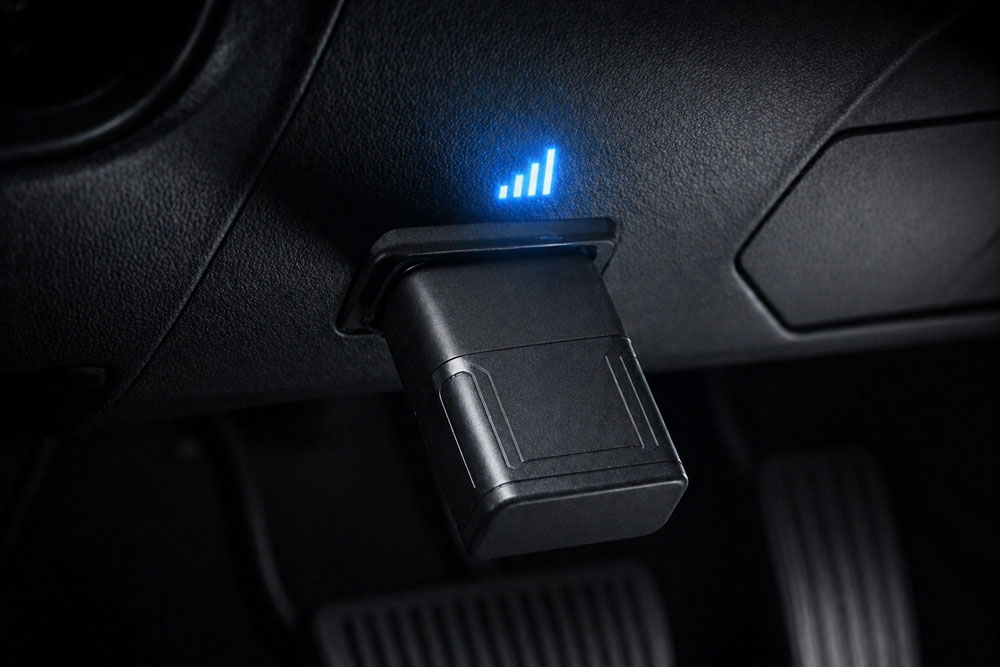
When you plug in Bouncie, it shows internal lights for the first 5 seconds. These lights tell you exactly what state the device is in:
| LED Pattern | What It Means | Action Required |
|---|---|---|
| Lights flash for 5 seconds then stop | Normal operation — device connected | None — working correctly |
| No lights at all when plugged in | No power from OBD port | Check fuse (see Issue #1 below) |
| Lights flash continuously | Searching for GPS or cellular signal | Drive to open area, wait 10 min |
| Device feels warm but no lights | Possible hardware issue | Contact Bouncie support for replacement |
Fix the 7 Most Common Bouncie Problems
Bouncie Shows No Lights — Won't Power On
If no lights appear when you plug in Bouncie, the OBD port is not providing power. This is almost always caused by a blown fuse.
- Unplug Bouncie from the OBD port completely
- Locate your vehicle's fuse box — usually under the dashboard on the driver's side or in the engine compartment. Check your owner's manual for the exact location.
- Find the fuse labeled "OBD," "DLC," or "Diagnostic Port" — refer to your manual's fuse diagram
- Remove the fuse and inspect it. A blown fuse has a visibly broken wire inside the transparent body
- Replace with an identical fuse (same amperage rating — do not substitute a higher amperage)
- Plug Bouncie back in and look for LED lights within 5 seconds of starting the car
- If lights still do not appear after replacing the fuse, try Bouncie in a different vehicle. If it works in another car, the OBD port itself may need professional inspection.
Bouncie Not Updating Location — Stuck on Old Position
If the Bouncie app shows your vehicle's last known location but is not updating as the car moves, this is usually a cellular connectivity or GPS signal issue.
- Drive to an open area with clear sky visibility — underground parking, dense urban canyons, and thick tree cover can block GPS signals temporarily
- Check AT&T and T-Mobile coverage maps for your area at att.com/maps and t-mobile.com/coverage. If you are in a known dead zone, Bouncie will resume updating when you return to coverage
- Open the Bouncie app and pull down to refresh the screen manually
- Perform a device reboot: unplug Bouncie, wait 30 seconds, plug back in, then drive for 10 minutes with the engine running
- Check if Bouncie's servers are experiencing downtime by visiting bouncie.com or their social media channels for status updates
Bouncie Showing Wrong Location
If the app shows your vehicle in a completely wrong location — miles from where it actually is — this is usually a GPS satellite signal issue or a data sync delay.
- Check when the location was last updated — look for the timestamp in the app. If it shows hours ago, it is displaying a cached location, not current position
- Drive the vehicle to an open area and wait 5 minutes for GPS satellites to recalculate an accurate position
- Force close the Bouncie app completely on your phone, then reopen it and let it fully reload
- Update the Bouncie app to the latest version from the App Store or Google Play — outdated app versions can cause display glitches
- Perform a device reboot by unplugging, waiting 30 seconds, and plugging back in while parked in an open area
Bouncie App Not Working or Crashing
If the Bouncie app crashes, freezes, or fails to load, the issue is almost always with the app itself rather than the hardware device.
- Force close the app completely — swipe it away from your recent apps on iOS or Android
- Update the app to the latest version: App Store (iOS) or Google Play (Android). Bouncie regularly releases updates — running an outdated version causes the most app stability issues
- Restart your smartphone completely — a full phone restart clears memory cache that can cause app instability
- If the app still crashes, uninstall it completely and reinstall from the app store. Your account data is stored on Bouncie's servers — reinstalling does not delete any trip history
- Check your phone's internet connection — the Bouncie app requires an active internet connection (WiFi or cellular data) to display location data
Bouncie Not Recording Trips
If drives are not appearing in your trip history, the device may not be detecting ignition state changes correctly.
- Confirm the device is fully seated in the OBD port — a loose connection can prevent ignition detection
- Take a calibration drive of at least 10 minutes. Bouncie needs initial calibration after first installation or after a reboot
- Check that your vehicle is in Bouncie's compatibility list using the Compatibility Checker at bouncie.com — some older or unusual vehicles may have OBD port variations
- In the app, go to Settings and verify the vehicle information is correctly entered — incorrect vehicle data can affect trip recording accuracy
- Allow 5–10 minutes after plugging in for Bouncie to complete its connection validation process before driving
Bouncie Alerts Not Sending
If speed alerts, geo-fence notifications, or crash alerts are not reaching your phone, the issue is usually notification settings on your phone rather than the Bouncie device.
- On iPhone: go to Settings → Notifications → Bouncie → ensure Allow Notifications is turned ON and alerts are set to show on lock screen
- On Android: go to Settings → Apps → Bouncie → Notifications → ensure all notification categories are enabled
- In the Bouncie app itself, go to Alerts settings and verify each alert type (speed, geo-fence, crash) is enabled and configured with correct thresholds
- Check that your phone is not in Do Not Disturb mode, which blocks all notifications regardless of app settings
- Verify your geo-fence zones are correctly drawn in the app — a zone that is too large may never trigger an alert under normal driving patterns
Bouncie Showing Inaccurate Speed or Mileage
If speed readings or mileage appear significantly off from actual values, calibration or vehicle data entry may need adjustment.
- Take a calibration drive: drive the vehicle for at least 15 minutes at highway speed on an open road, then check the app. Bouncie self-calibrates during normal driving
- In the app settings, verify the vehicle's current odometer reading is correctly entered — this is used for mileage calculations
- Verify your tire size matches your vehicle's specifications — non-standard tire sizes can affect speed readings from OBD data
- Contact Bouncie support through the in-app chat if inaccuracies persist after calibration — they can make server-side adjustments for vehicle-specific calibration issues
When to Contact Bouncie Support
If you have worked through all the troubleshooting steps above and Bouncie is still not working correctly, it is time to contact Bouncie's support team directly. You can reach them through:
- In-app chat: Tap the help icon in the Bouncie app — fastest response
- Help center: help.bouncie.com — extensive FAQ and guides
- Email: [email protected]
Bouncie offers a warranty replacement program if your device is found to be defective. Have your order number and a description of the issue ready when you contact support.
If you are considering upgrading or getting Bouncie for another vehicle — it is the best value OBD GPS tracker at \$8–\$9/month. No contract.
→ Get Bouncie GPS — Official SiteFrequently Asked Questions
How do I reset my Bouncie GPS tracker?
To reset your Bouncie GPS tracker, simply unplug the device from the OBD port, wait at least 30 seconds, then plug it back in firmly. After reinsertion, Bouncie performs a series of updates and validations and then reconnects to GPS and the cellular network. This process takes 5–10 minutes. Drive the vehicle for at least 10 minutes after the reboot to allow full recalibration.
Why is my Bouncie not showing my car's location?
The most common causes are: weak or no cellular coverage in your area (check AT&T and T-Mobile coverage maps), the vehicle was recently in a parking garage or tunnel where GPS signal is blocked, the device needs a reboot (unplug and replug), or the Bouncie app needs to be updated or refreshed. Bouncie stores location data locally when signal is unavailable and syncs automatically when coverage is restored.
Why are my Bouncie alerts not working?
Alert issues are almost always caused by notification settings on your phone rather than the Bouncie device. Check that notifications are enabled for the Bouncie app in your phone's system settings (not just within the app itself), that your phone is not in Do Not Disturb mode, and that each alert type is correctly configured in the Bouncie app's Alerts section.
My Bouncie has no lights — what does that mean?
No lights when Bouncie is plugged in means the OBD port is not providing power. This is almost always caused by a blown fuse. Check your vehicle's fuse box for the OBD or DLC fuse (refer to your owner's manual for location), inspect it for a broken wire inside the transparent body, and replace it with an identical fuse of the same amperage. If replacing the fuse does not restore power, try Bouncie in a different vehicle to rule out a hardware fault.